
Every booking that lands in Estimatty is a customer who has already picked a service, seen a price, and handed you a card. Your job from here is four clicks: confirm it, do the work, mark it complete, charge the card.
This article walks through the whole thing – the requests list, the calendar, each action button, and the settings that decide who gets notified when.
Where to find it
In the left sidebar, under BOOKINGS, you’ll see three items:
- Requests – every booking that’s come in, in one list
- Calendar – the same bookings, laid out by date
- Settings – your hours, payment method, and booking rules
Click Requests to start.
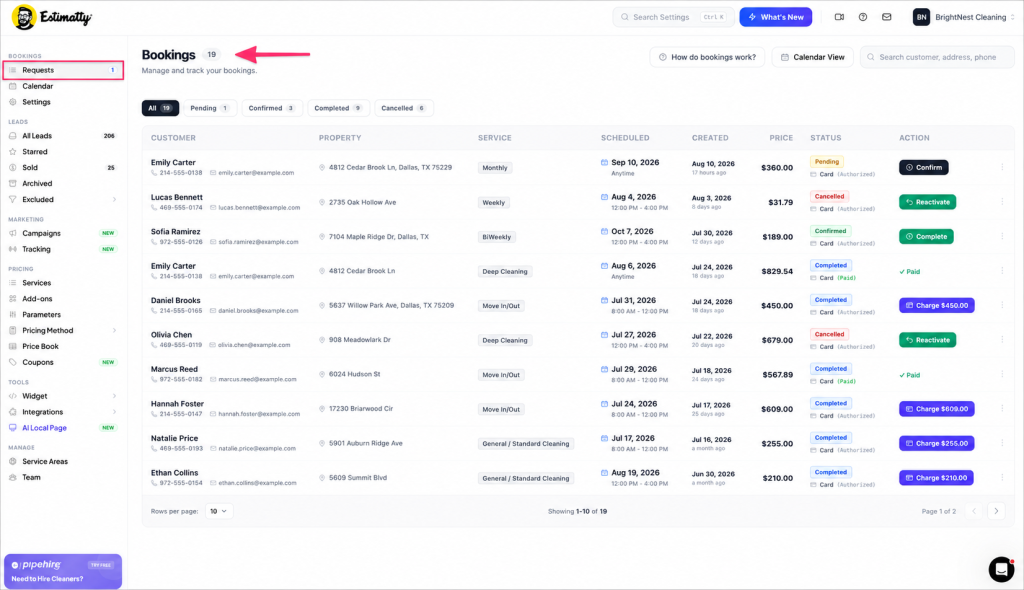
The number badge next to Requests tells you how many bookings are waiting on you. If it says 1, one person is sitting there wondering if you’re going to show up. Start there.
How a booking moves through Estimatty
Every booking follows the same four steps:
New Booking → Confirmed → Completed → Charged
| Stage | What it means | Who does it |
|---|---|---|
| New Booking | Customer requested a date | Customer |
| Confirmed | You approved the date | You |
| Completed | Job is done | You |
| Charged | Payment collected | You |
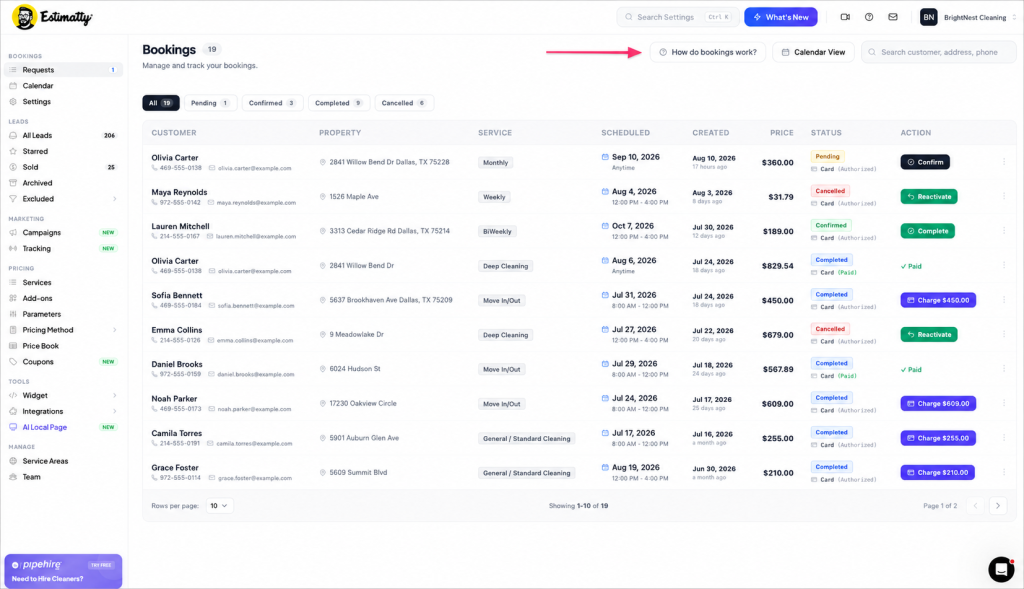
You can see this map any time inside the app. Click How do bookings work? at the top right of the Bookings page and the flow appears above your list.
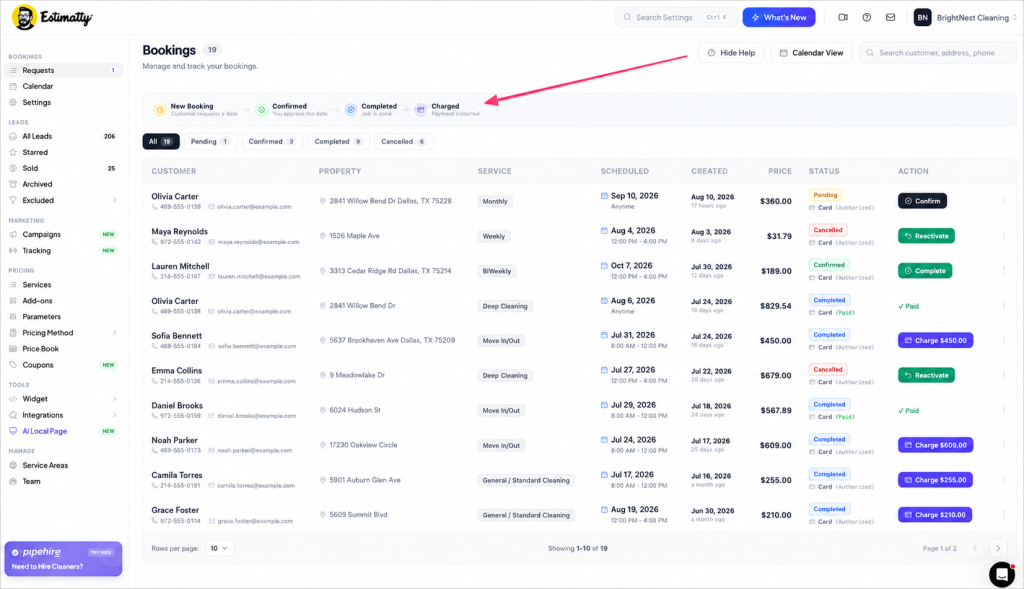
Done looking? Click Hide Help to collapse it.
Reading the Requests list
The list gives you everything you need to make a decision without opening anything:
- Customer – name, phone, email
- Property – service address
- Service – Weekly, BiWeekly, Monthly, Deep Cleaning, Move In/Out, General
- Scheduled – the date and arrival window the customer picked
- Created – when the request came in, plus how long ago
- Price – the estimated total
- Status – Pending, Confirmed, Completed or Cancelled, plus the card status
- Action – the one button that moves this booking forward
Filter by status
The tabs above the table let you cut the list down fast: All · Pending · Confirmed · Completed · Cancelled
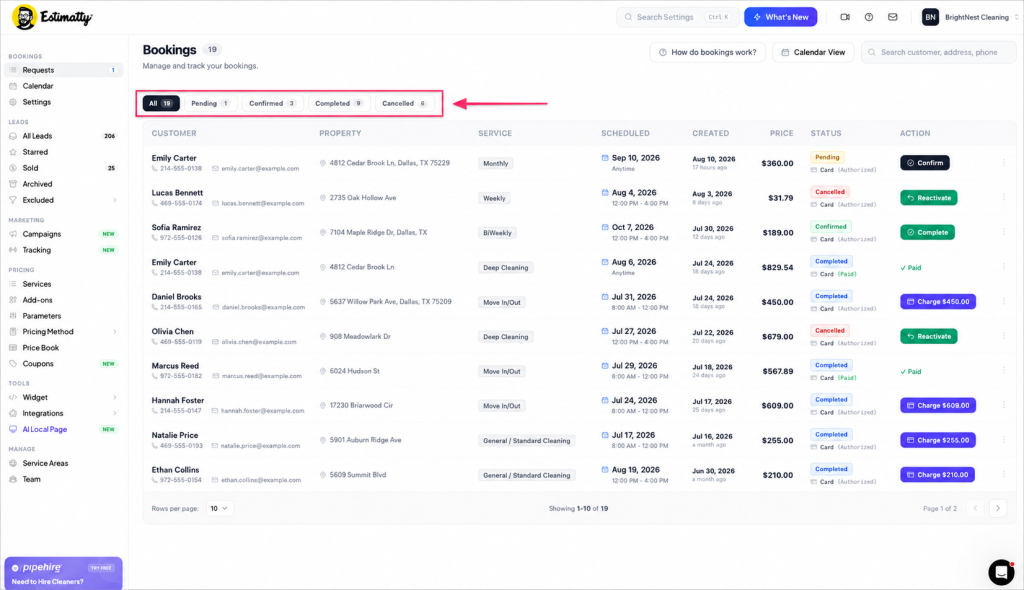
Most owners work out of Pending.
Most owners live in Pending. That’s the tab with money waiting on a decision.
Card status
Under each status you’ll see either Card (Authorized) or Card (Paid).
- Authorized – the customer’s card was validated and put on hold at booking. Nothing has been charged yet.
- Paid – you’ve charged it. Money’s collected.
The Action column
Estimatty only ever shows you the next logical step for that booking. No menus, no guessing.
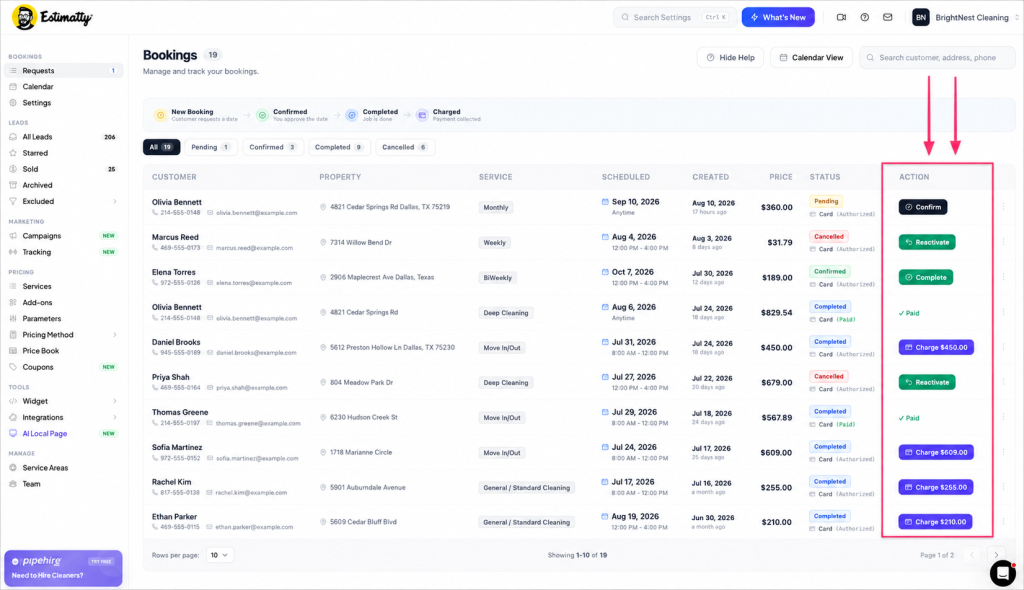
| Button | Appears when | What it does |
|---|---|---|
| Confirm | Status is Pending | Locks in the date and notifies the customer |
| Complete | Status is Confirmed | Marks the job as done |
| Charge $XXX | Status is Completed | Runs the card on file |
| Reactivate | Status is Cancelled | Sends the booking back to Pending |
| ✓ Paid | Already charged | Nothing left to do |
Confirming a booking
Click Confirm on any pending booking. A window opens with three things:
- Scheduled Date – the date and arrival window the customer requested
- Price – editable, in case the job needs an adjustment
- Confirm Booking – the green button that makes it official
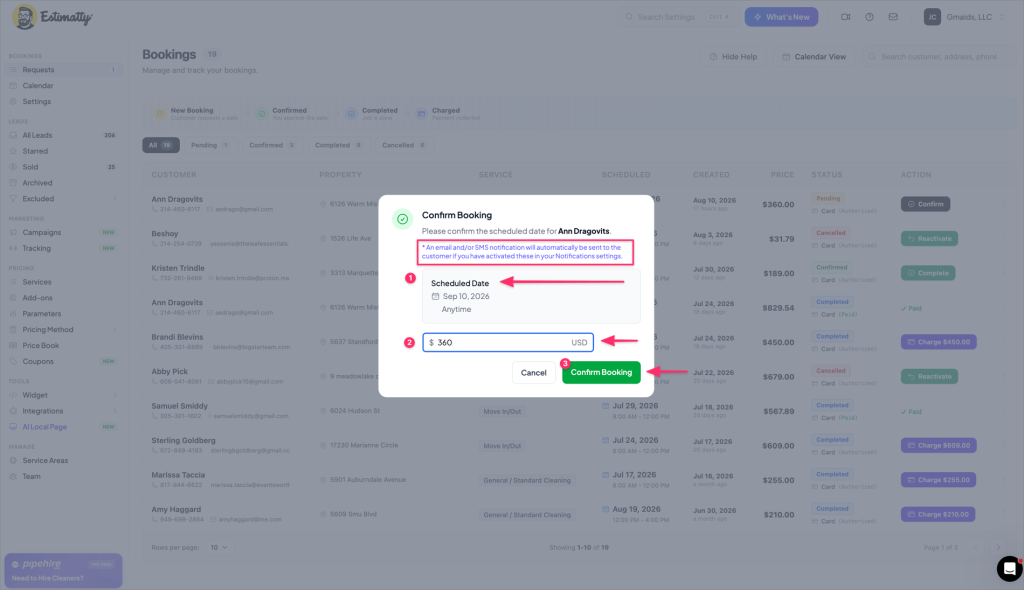
Heads up: if you have customer notifications turned on, confirming automatically sends the customer an email and/or text. You don’t have to write anything.
Adjusted the price? Change it here before you confirm. The number you save is the number that gets charged later.
Opening full booking details
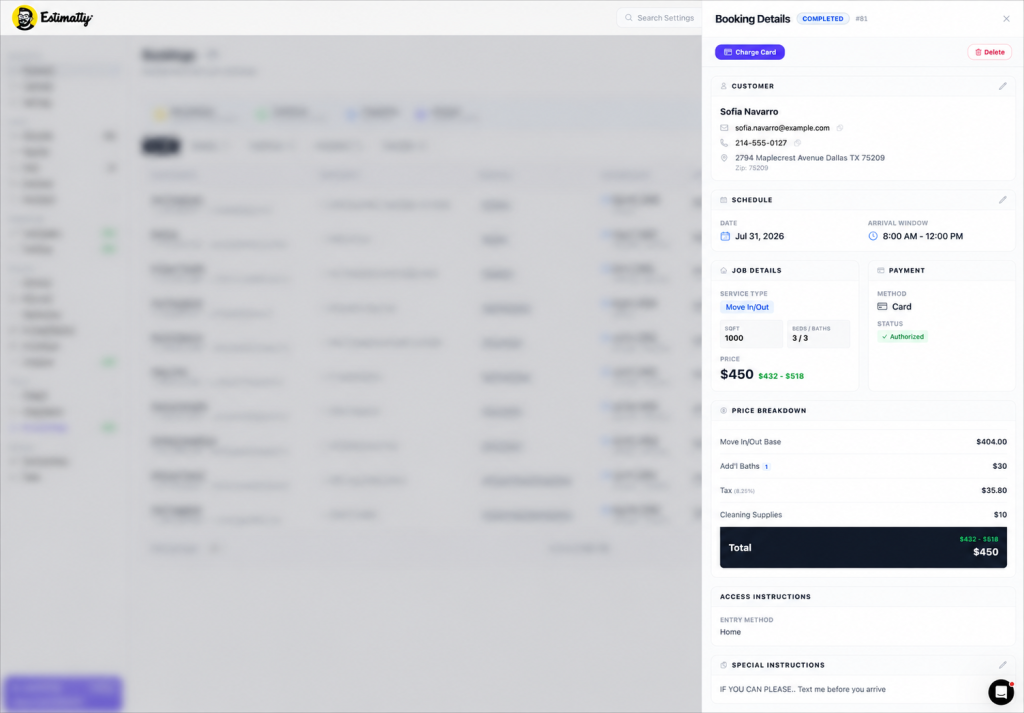
Click anywhere on a row and a details panel slides in from the right. This is where the whole picture lives:
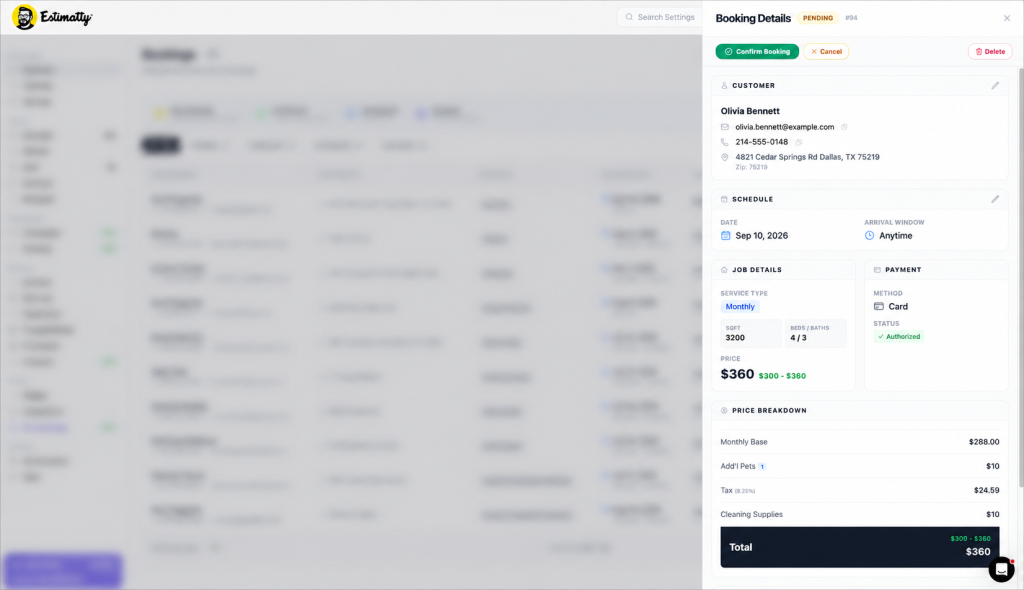
access instructions, and special notes.
- Customer – name, email, phone, full address, ZIP, with copy buttons
- Schedule – date and arrival window
- Job Details – service type, square footage, beds and baths, final price
- Payment – method and authorization status
- Price Breakdown – base price, add-ons, coupons, tax, cleaning supplies, total
- Access Instructions – how your crew gets in
- Special Instructions – whatever the customer typed at booking
The green range next to the price (for example $300 - $360) is the estimate range the customer originally saw. The bold number is what they’re actually being charged.
The action buttons live at the top of the panel and change with the booking’s status:
- Pending → Confirm Booking · Cancel · Delete
- Confirmed → Complete Booking · Cancel · Delete
- Completed → Charge Card · Delete
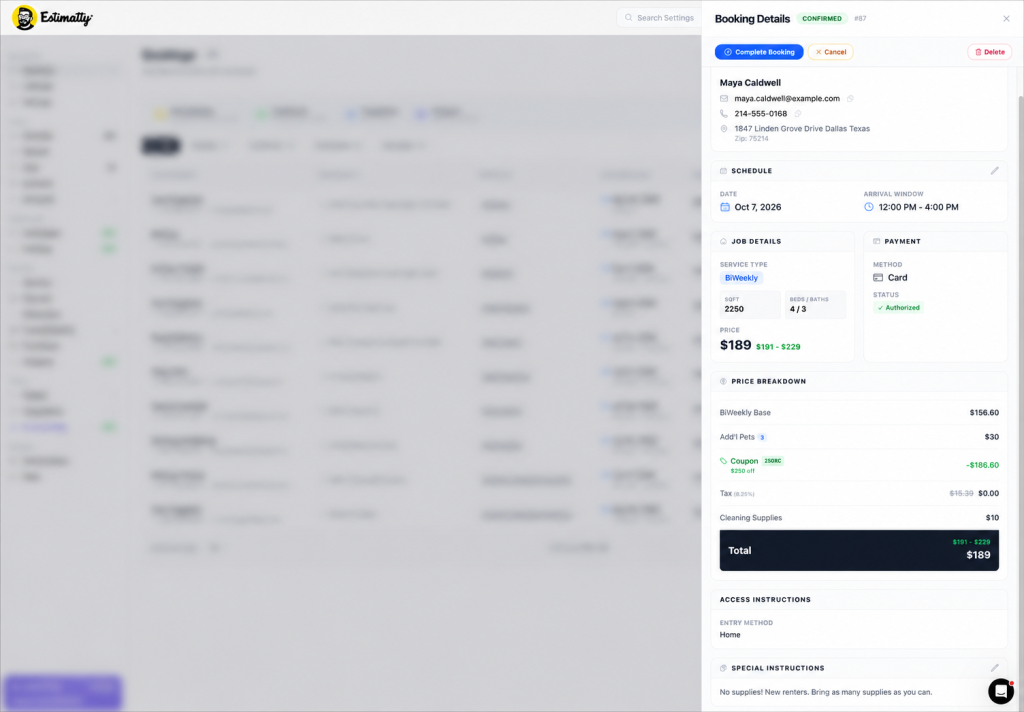
including any coupons the customer used.
Cancel vs. Delete
- Cancel keeps the booking in your records with a Cancelled status. You can bring it back.
- Delete removes it permanently. Use it for test bookings and obvious spam – not for a customer who rescheduled.
Bringing a cancelled booking back
Customer cancelled Tuesday, then texted you Thursday asking to reschedule? You don’t need to rebuild anything.
Click Reactivate on the cancelled booking, then confirm.
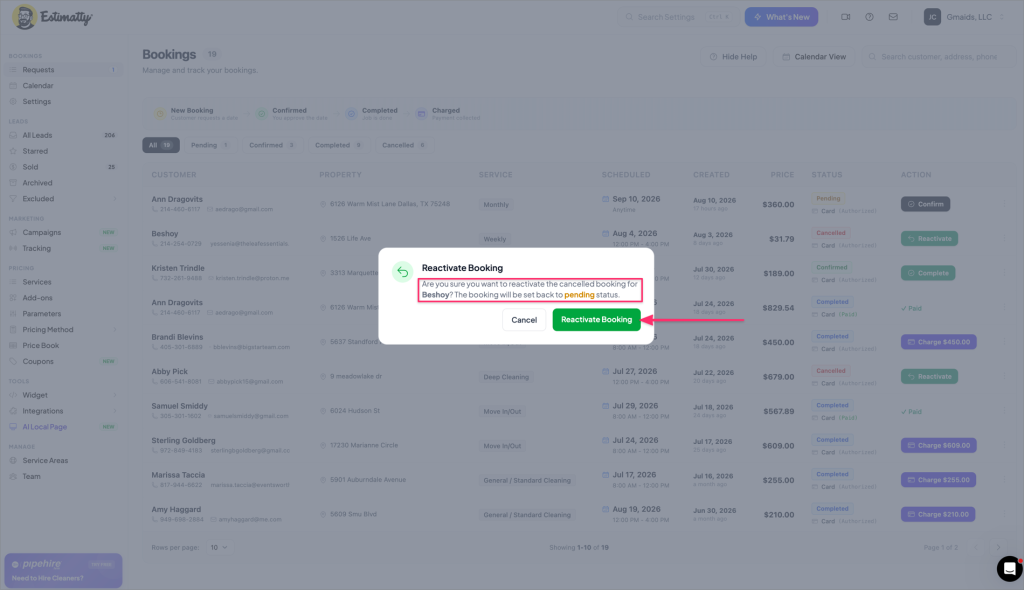
The booking returns to Pending with all of its original details intact. Confirm it with the new date and you’re back on track.
Getting paid
The card was authorized when the customer booked. You collect after the work is done.
Step 1. Click Complete once the job is finished. Status flips to Completed and the action button becomes Charge $XXX.
Step 2. Click Charge. A window opens with the amount pre-filled – editable, in case the final job came in higher or lower than estimated.
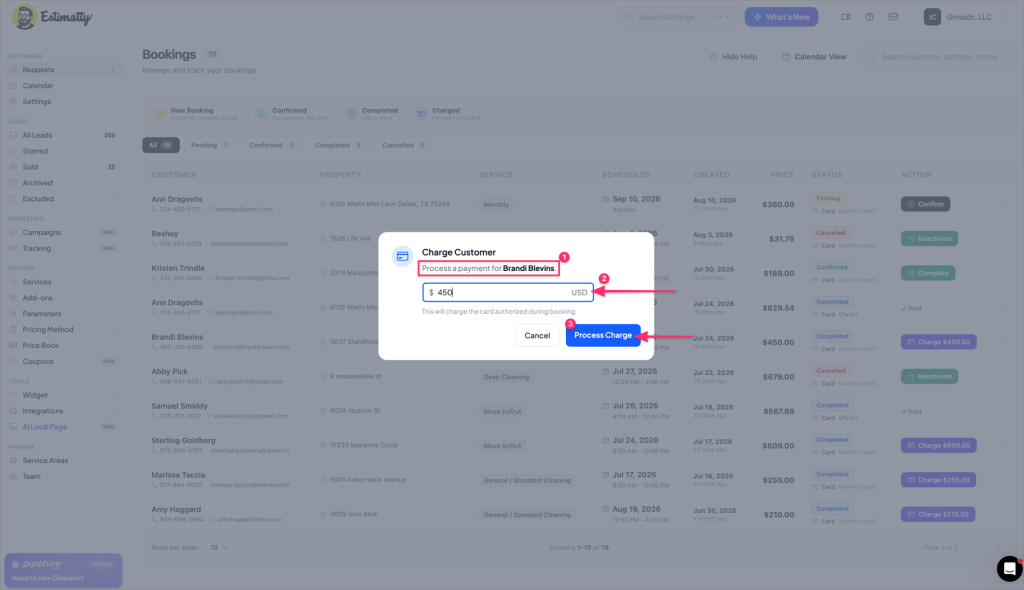
came in different, then click Process Charge.
Step 3. Click Process Charge. This charges the card that was authorized during booking. Status changes to ✓ Paid.
No invoice to send. No “just following up on that payment” text at 9pm. It’s done.
Calendar view
Lists are for deciding. Calendars are for planning.
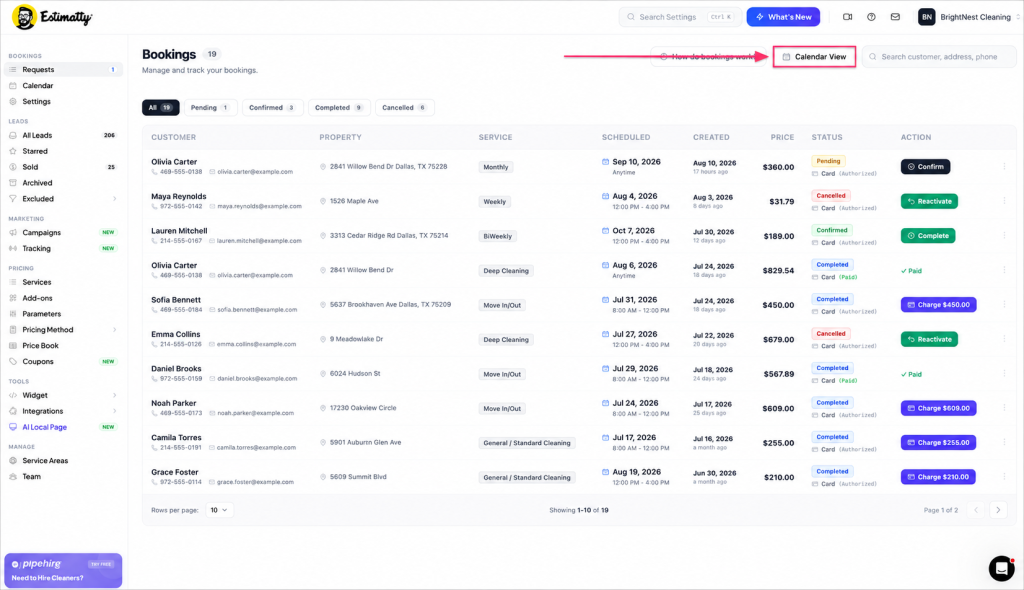
Click Calendar in the sidebar – or Calendar View at the top of the Bookings page – to see everything laid out by date.
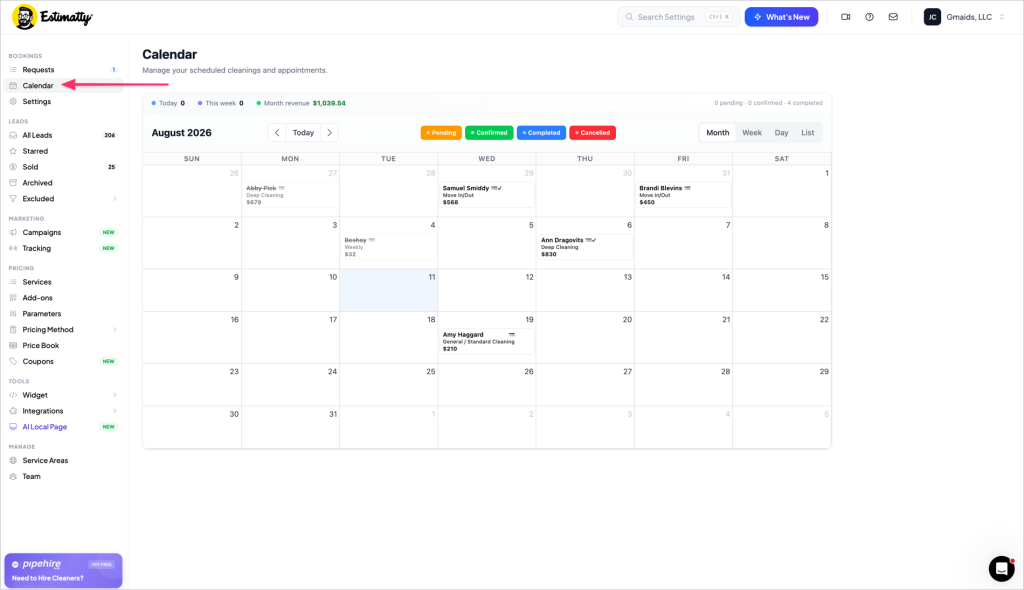
Across the top you get a quick read on your week:
- Today – jobs scheduled for today
- This week – jobs scheduled this week
- Month revenue – dollars booked this month
- A count of pending, confirmed and completed on the right
Each booking block shows the customer, the service and the price. Cancelled jobs appear with a line through the name so you can see the gap in your schedule instead of pretending it isn’t there.
Switch between Month · Week · Day · List in the top right. Use the arrows or Today to navigate.
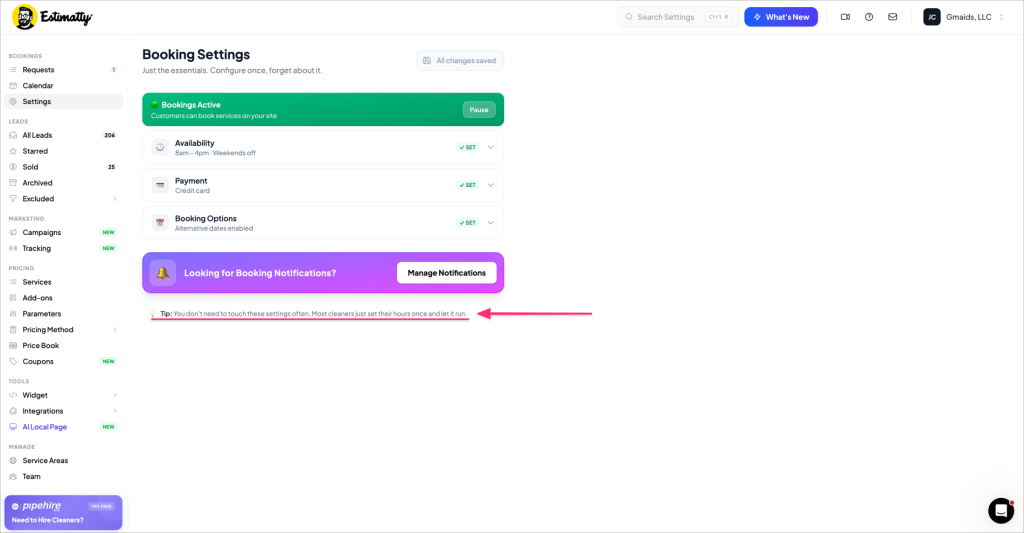
Booking Settings
Click Settings under BOOKINGS. Four things live here, and most owners set them once and never touch them again.
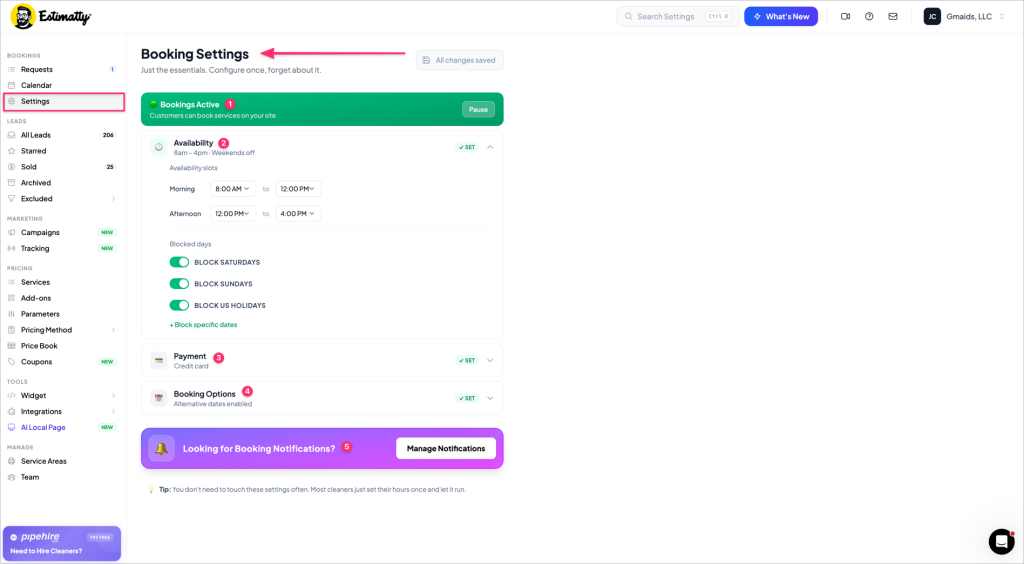
messages before a booking is confirmed.
1. Bookings Active
The green banner at the top means customers can book on your site right now. Hit Pause if you’re fully booked, short-staffed, or closing for a week. Estimatty keeps quoting – it just stops taking new appointment requests.
2. Availability
Set the arrival windows customers can choose from:
- Morning – default 8:00 AM to 12:00 PM
- Afternoon – default 12:00 PM to 4:00 PM
Below that, block the days you don’t work: Saturdays, Sundays, US holidays, or + Block specific dates for vacations, training days, or your kid’s graduation.
Blocked days simply don’t appear as options to the customer. No one requests a date you can’t serve.
3. Payment
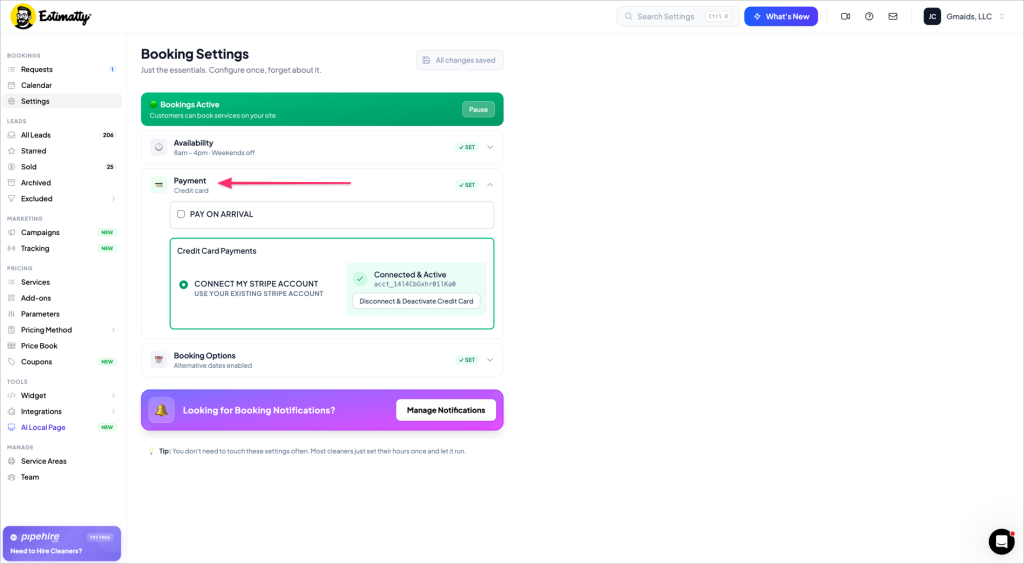
Two options:
- Pay on arrival – no card collected at booking. The customer pays your crew at the door.
- Credit card payments – connect your Stripe account and Estimatty authorizes the card at booking, so it’s ready to charge when the job’s done.
Once Stripe is connected you’ll see Connected & Active with your account ID. Disconnect & Deactivate Credit Card turns card payments off.
Card payments are what make no-shows expensive for the customer instead of expensive for you.
4. Booking Options
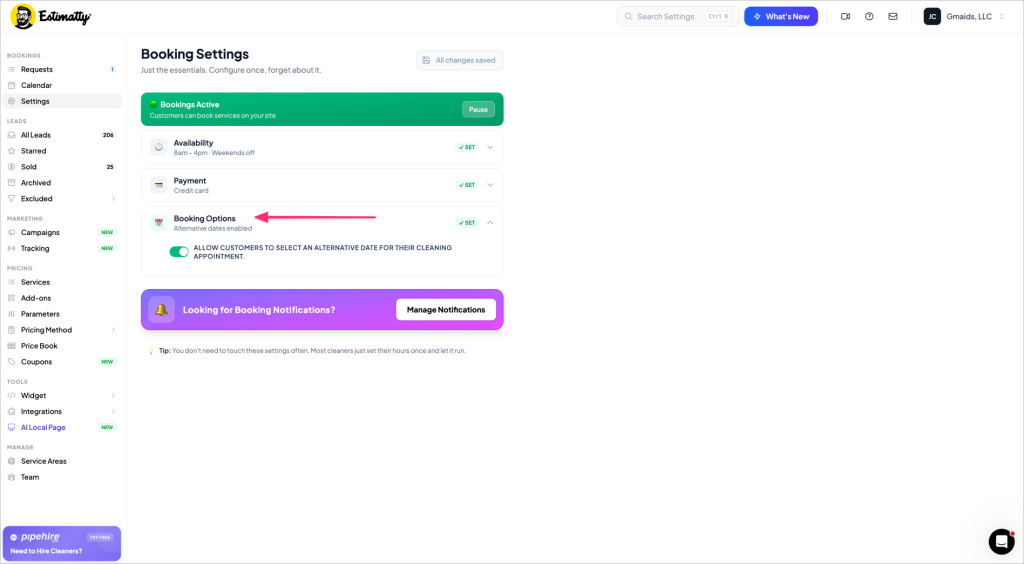
Allowing customers to select an alternative date gives them a backup option when they book. If their first choice doesn’t work for your schedule, you already have a second date to confirm – instead of a phone tag thread.
Notifications
Click Manage Notifications from the purple banner in Booking Settings. There are two tabs: Estimates and Bookings.
Estimates tab
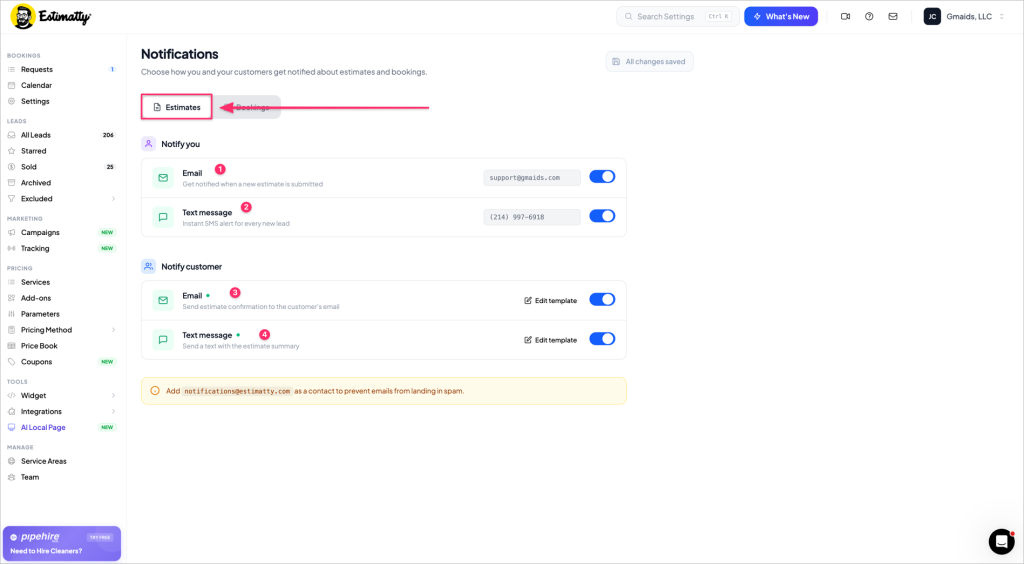
Notify you – an email every time a new estimate comes in, and an instant SMS alert for every new lead. Set the address and number here.
Notify customer – the estimate confirmation by email and the estimate summary by text. Both have an Edit template link if you want to change the wording.
Bookings tab
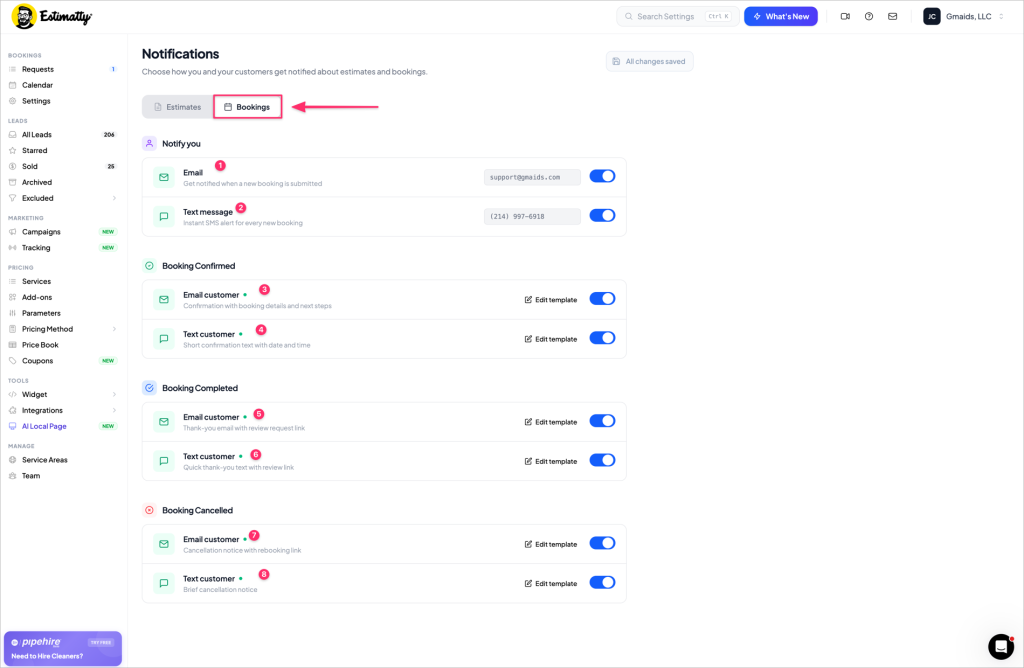
booking completed, and booking cancelled.
Notify you – email and SMS alerts whenever a new booking is submitted.
Automatic customer messages at three moments:
| Trigger | Text | |
|---|---|---|
| Booking Confirmed | Confirmation with details and next steps | Short confirmation with date and time |
| Booking Completed | Thank-you email with review request link | Quick thank-you with review link |
| Booking Cancelled | Cancellation notice with rebooking link | Brief cancellation notice |
Every one of these has Edit template so it sounds like you, not like software.
That review request after every completed job? That’s your Google review engine running on its own. Leave it on.
One thing to do right now
Add notifications@estimatty.com as a contact in your email so your alerts don’t land in spam. Takes ten seconds. Saves you a missed lead.
Quick answers
Do I have to confirm every booking manually?
Yes – and that’s on purpose. Confirming is your chance to check the date against your crew’s schedule before it’s locked in.
Can I change the price after the customer books?
Yes. Edit it in the Confirm window, or in the Charge window before you process payment.
What happens if I never confirm a booking?
It sits in Pending and the customer waits. Check the Created column – anything older than a few hours needs your attention.
Does the customer get charged when they book?
No. Their card is authorized, not charged. You collect after the job is marked Completed.
Can I take bookings without a Stripe account?
Yes. Switch Payment to Pay on arrival. You’ll collect at the door instead.
A customer cancelled but wants to rebook. Do I start over?
No. Filter to Cancelled, hit Reactivate, and confirm the new date.
What’s the difference between Cancel and Delete?
Cancel is reversible and stays in your records. Delete is permanent. When in doubt, cancel.
Tip: You don’t need to touch these settings often. Most cleaners set their hours once and let it run.
Still stuck? Open the chat bubble in the bottom-right corner of your dashboard, and we’ll walk through it with you.