
When homeowners search for local services—whether it’s house cleaning, maid services, or deep cleaning—trust is the #1 deciding factor.
Over 93% of consumers read online reviews before booking a local service, and seeing verified Google stars directly under your headline can double your quote completion rate.
With Estimatty’s built-in Google Social Proof Integration, you can showcase your live Google star rating and total review count on your local landing page with zero coding or API setup.
Here is a step-by-step guide to connecting your profile in under 30 seconds.
Why Connect Your Google Profile to Estimatty?
- Instant Trust & Credibility: Display verified 5-star ratings directly below your hero headline where every visitor sees it before requesting an estimate.
- Clickable Verification: Visitors can click your badge to open your official Google Maps profile and read real testimonials.
- Local SEO Boost (Schema.org): Estimatty automatically adds Google-compliant
aggregateRatingandsameAsstructured data to your page’s code, helping your listing display golden review stars in Google search results. - Hands-Off Maintenance: Estimatty automatically syncs and refreshes your review count and rating every month in the background.
Step-by-Step: How to Connect Your Business
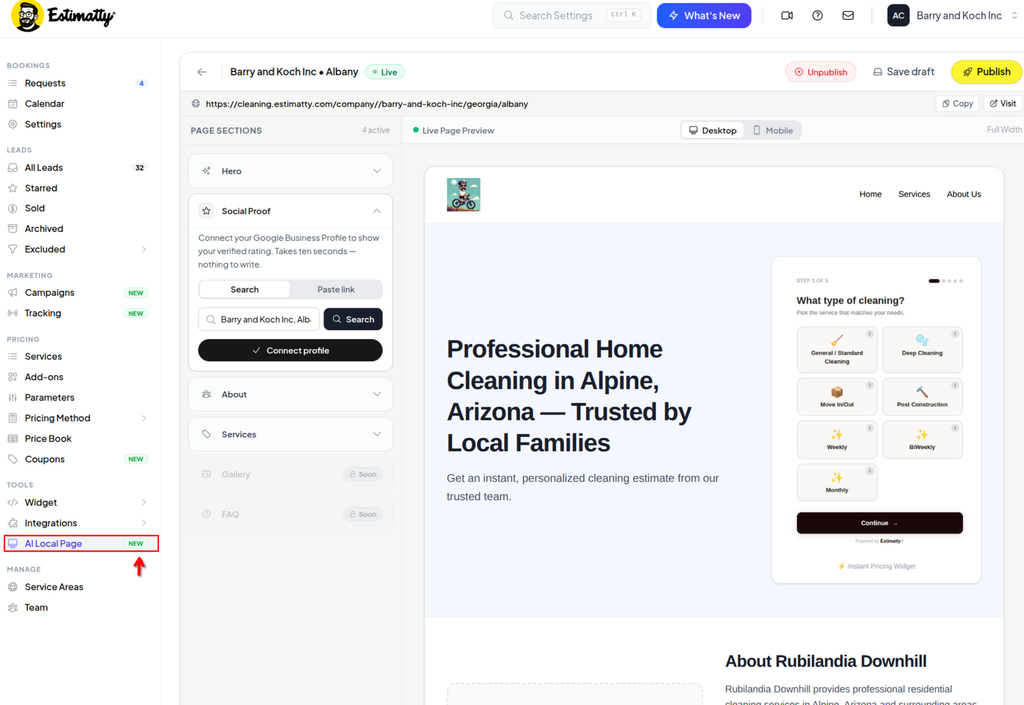
Step 1: Open the Local Page Builder
- Log in to your Estimatty Dashboard.
- Go to AI Local Pages from the main navigation menu.
Step 2: Open the “Social Proof” Section
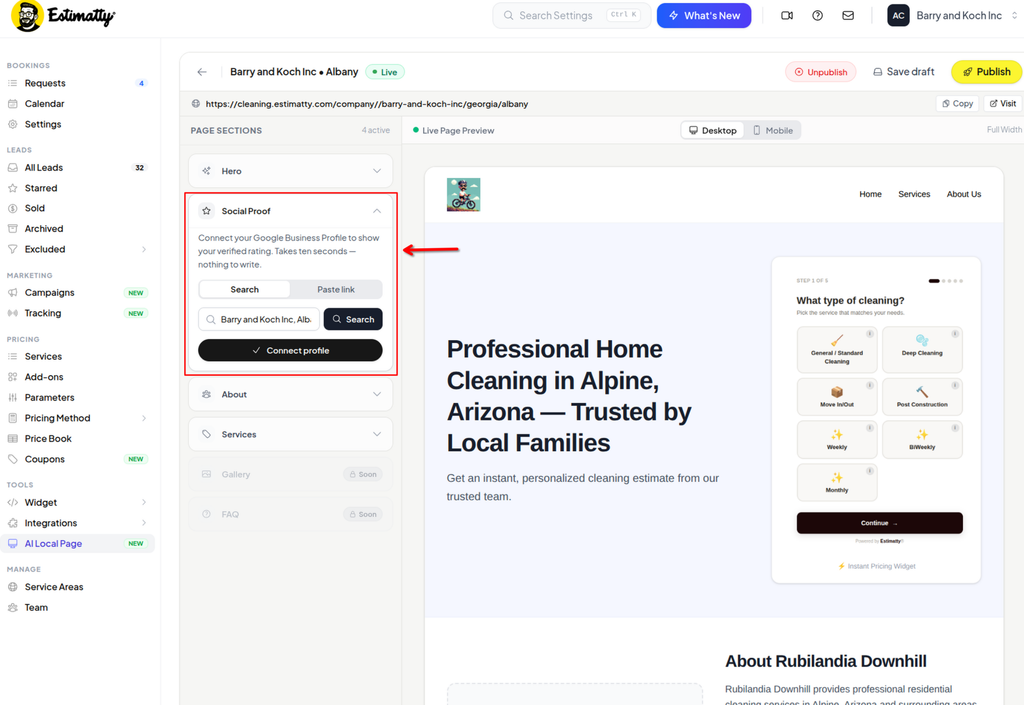
On the left sidebar under Page Sections, look for the Social Proof accordion item (marked with a star icon ⭐) and click to expand it.
💡 Did You Know? Estimatty silently attempts to auto-match your business based on your registered company name, city, and state. If your profile is already auto-matched, you will see a green Connected status! If not, connecting manually takes just a couple of clicks.
Step 3: Choose Your Connection Method
You have two simple ways to connect your profile:
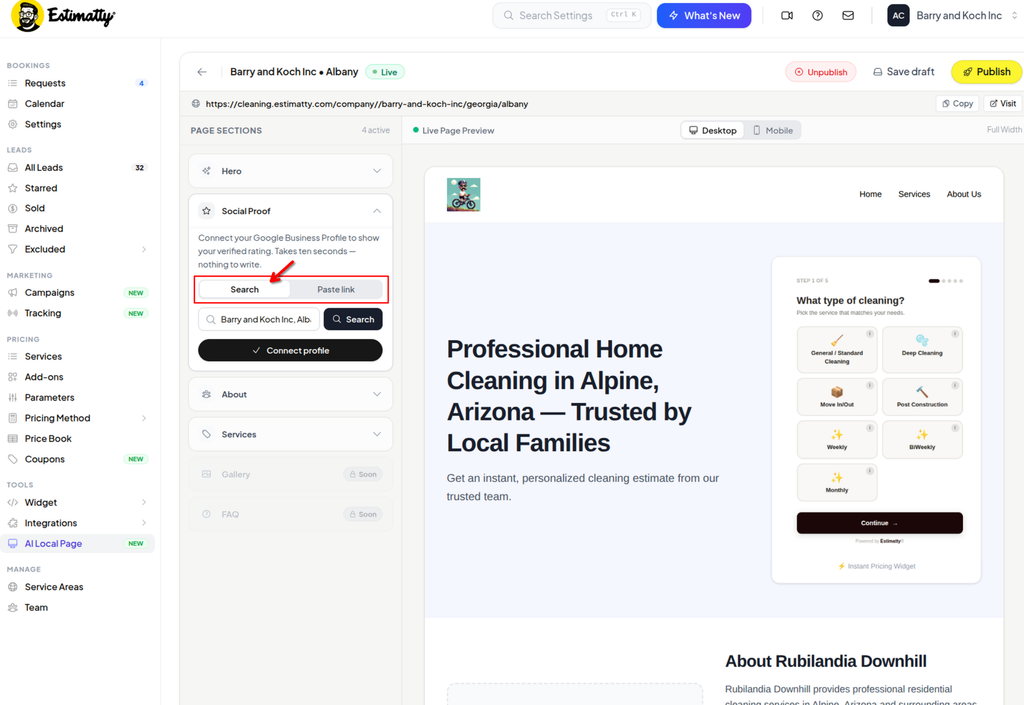
Method A: Search by Business Name (Fastest)
- Stay on the Search tab.
- Estimatty will automatically prefill your registered business name, city, and state.
- Click the black Search button (or press
Enter). - A list of matching Google establishments will appear. Find your exact business and click on it.
- Click Connect Profile.
Method B: Paste Your Google Maps Link
If you have a common business name or want to ensure exact precision:
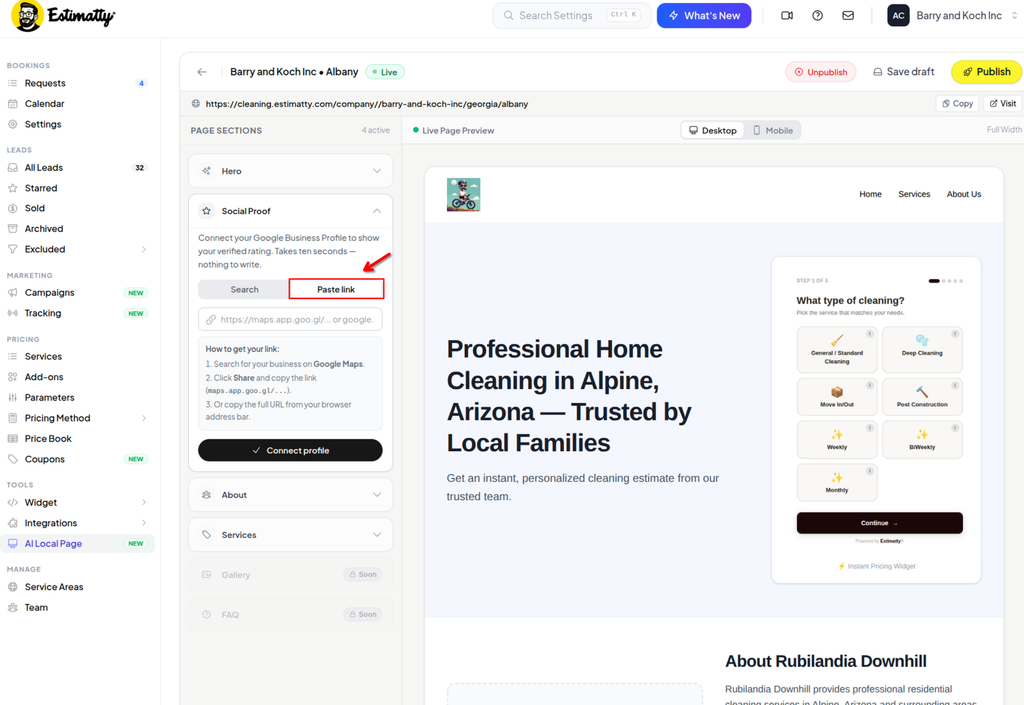
- Switch to the Paste link tab.
- Open Google Maps in another tab and search for your business.
- Click the Share button on your Google Business Profile.
- Click Copy link (e.g.,
https://maps.app.goo.gl/...orhttps://google.com/maps/place/...). - Paste the link into the Estimatty field and click Connect Profile.
Step 4: Preview Your Badge in Real Time
As soon as you connect:
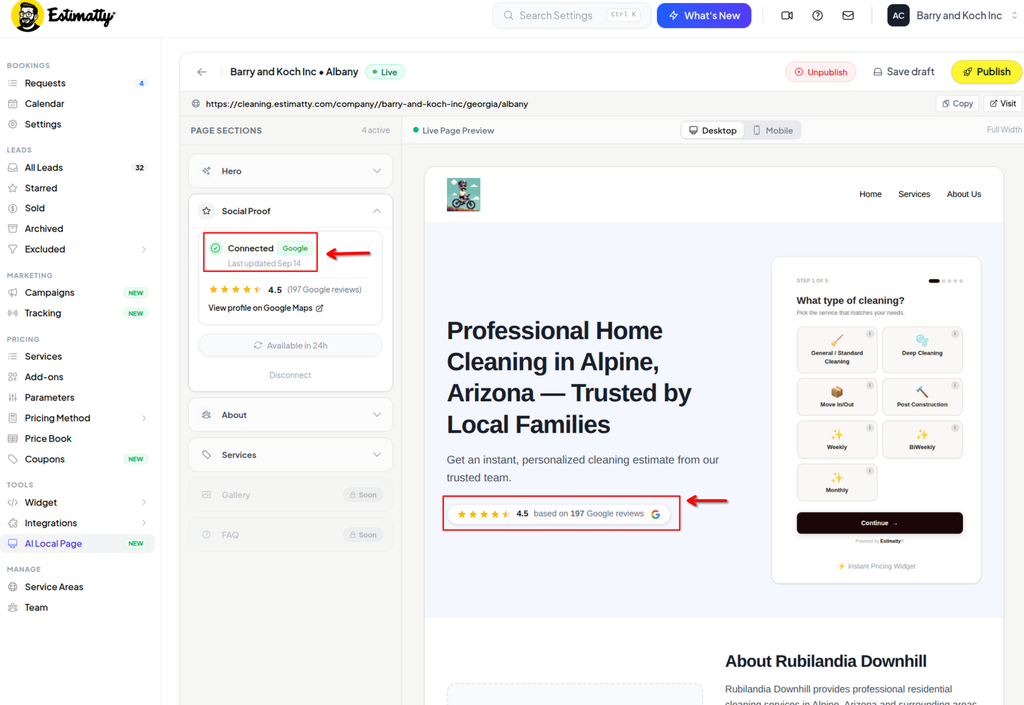
- Your verified rating (e.g., 4.9 ★★★★★) and review count (e.g., 142 Google reviews) appear in the side panel.
- The Live Page Preview on your canvas updates immediately, showing your new badge tucked right beneath your subheadline.
- A “View profile on Google Maps” link appears so you can double-check that it directs to your listing.
Step 5: Save & Publish
Once you’re satisfied with the preview, click Publish (or Save Changes) in the top bar. Your live landing page is updated immediately!
How to Keep Reviews Fresh & Manage Your Connection
- Monthly Background Sync: Estimatty automatically checks and updates your rating and review tally on the 1st of every month without you lifting a finger.
- On-Demand Manual Refresh: Received a batch of great new reviews and don’t want to wait? Open the Social Proof panel and click Refresh reviews. (To protect API stability, manual refreshes are available once every 24 hours).
- Disconnecting / Changing Profile: Rebranding or need to connect a different listing? Click Disconnect in the Social Proof panel to reset your settings at any time.
FAQs
Do I need to give Estimatty access to my Google account or password?
No. Estimatty connects to your publicly available Google Maps business listing via the official Google Places API. We never ask for your Google account credentials, passwords, or Google Business Profile manager access.
How often does my rating and review count update?
Estimatty automatically refreshes your review metrics on a monthly schedule in the background. If you recently received positive reviews and want to display them right away, you can use the Refresh reviews button in your Page Builder (available once every 24 hours).
What happens if I don’t have any Google reviews yet?
If your business is brand new or does not yet have public reviews on Google, Estimatty gracefully hides the review badge until your first rating is published. Your landing page will remain clean and professional without displaying an awkward “0 reviews” or empty stars.
Does this help my website’s Google SEO ranking?
Yes. When your Google profile is connected, Estimatty injects Google-compliant JSON-LD Schema Markup (LocalBusiness with aggregateRating and sameAs attributes) directly into your page’s <head>. This tells search engine bots that your local page is the verified web entity of your Google Maps listing, boosting local authority and eligibility for rich star snippets in search results.
Can visitors click the badge to verify my reviews?
Yes. The badge on your live page links directly to your official Google Maps business profile in a new tab, allowing prospective clients to read your genuine customer feedback with one tap.
What if my business name or address changes on Google?
If you update your business details on Google Maps, click Refresh reviews in the builder. If you changed your physical address or created a completely new Google Maps listing, click Disconnect and simply search or paste your new link.
Why can’t I find my business using the Search tab?
If your business doesn’t appear in the search suggestions, it is usually because:
- Your Google Business Profile was verified very recently and is still indexing.
- Your profile is set up as a service-area business without a public physical storefront address.
Solution: Use the Paste link tab. Copy the direct share URL from Google Maps and paste it into Estimatty. It connects instantly regardless of service-area configuration.