
Your AI Local Page is a complete, SEO-optimized landing page for your cleaning business — built, hosted, and maintained by Estimatty. It has your services, your pricing, your story, and a live estimate widget baked right in.
Here’s why it matters more than a normal web page:
Homeowners don’t just Google “house cleaning near me” anymore. They ask ChatGPT. They ask Perplexity. They read Google’s AI Overview and never scroll to the blue links. Your AI Local Page is structured so those AI assistants can actually read it, understand what you do, where you work, and what you charge — and recommend you.
Most cleaning companies are invisible to that entire channel. This page is how you stop being one of them.
Time to complete: about 20 minutes. You’ll need your logo and one good photo of your team or yourself.
Before You Start
Have these two things ready:
- Your company logo (PNG with transparent background works best)
- A photo of you, your team, or the owner — a real human face. Not a stock photo of a sponge.
That’s it. Everything else you’ll write as you go, and we’ll tell you exactly what to say.
Step 1: Open the AI Local Page Builder
In your Estimatty dashboard, go to Tools → AI Local Page in the left sidebar. It’s marked NEW.
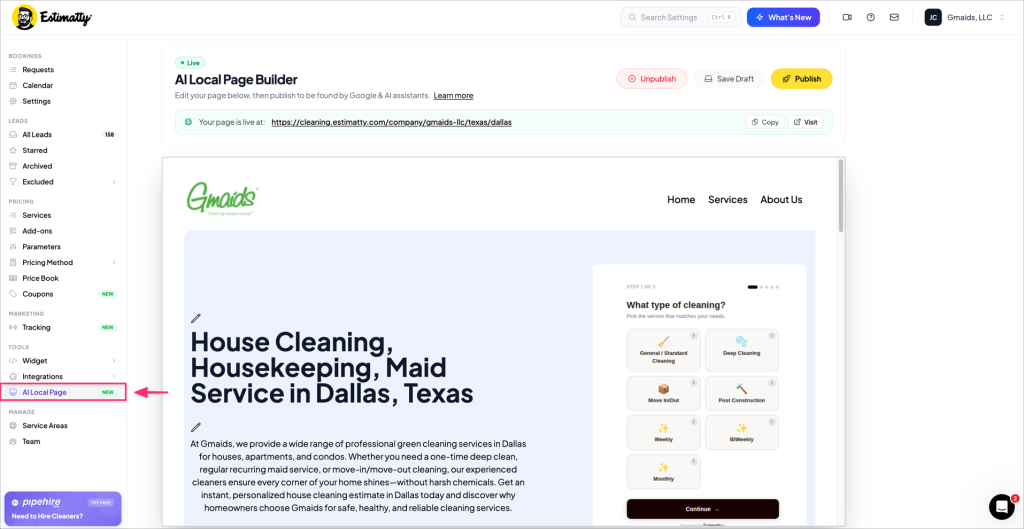
You’ll land in the AI Local Page Builder — a live preview of your page that you edit directly. Every section has a small pencil icon (✏️) next to it. Click any pencil to edit that piece of text or image right in place.
At the top of the builder you’ll find your controls:
- Live / Draft badge — tells you whether your page is currently public
- Save Draft — saves your work without pushing it live
- Publish — makes your page public and visible to Google and AI assistants
- Unpublish — pulls the page down if you ever need to
- Your page URL — with Copy and Visit buttons, once published
💡 Save Draft early and often. You can build the whole page in draft, review it, and only publish when it’s exactly right. Nothing goes public until you hit Publish.
Step 2: Upload Your Logo
Click the pencil next to the logo area at the top of the page preview and upload your company logo.
This appears in your page header and footer. A transparent PNG will look cleanest.
Start by uploading your company’s logo. This ill be the main visual representation of your brand on your page.
Step 3: Write Your Hero Section
This is the first thing a visitor — or an AI assistant — reads. It needs to say what you do and where you do it, in plain language.
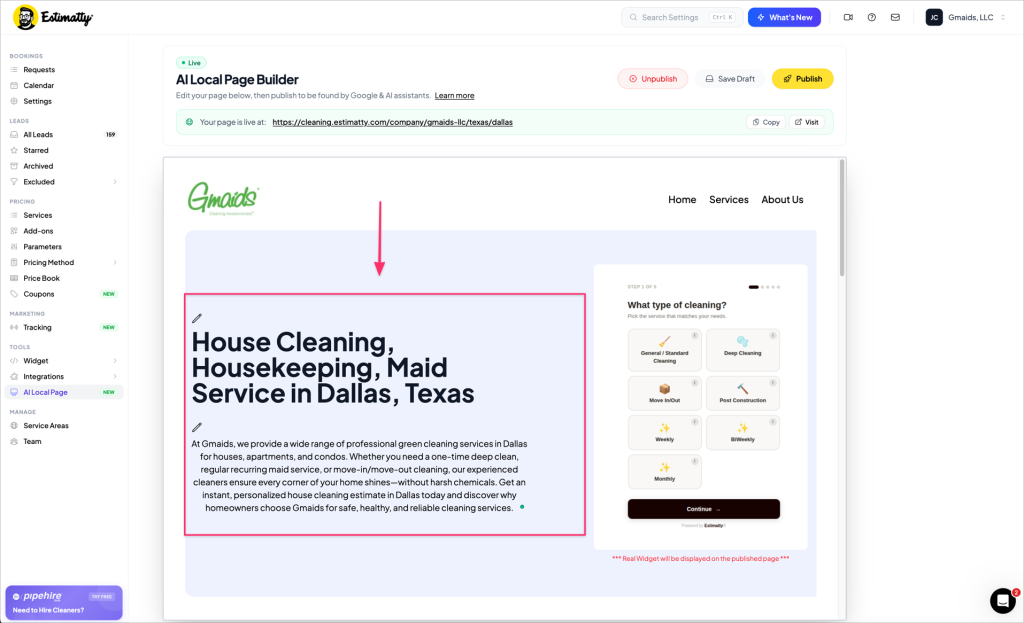
The Headline
Use this formula:
[Services] in [City], [State]
Real example:
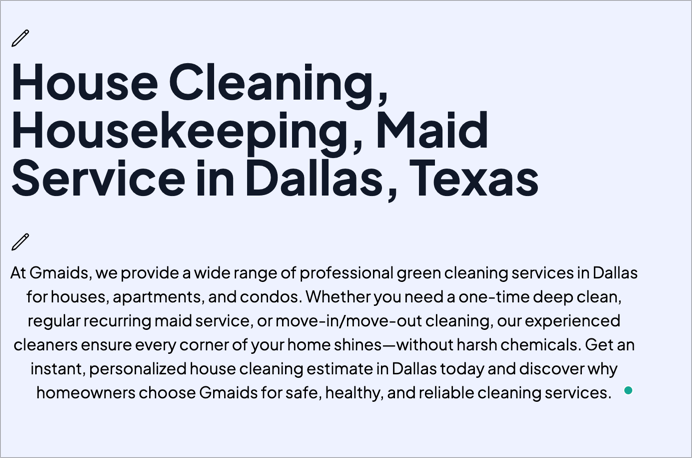
House Cleaning, Housekeeping, Maid Service in Dallas, Texas
That’s not fancy. That’s the point. Cramming in your services and your city is what makes both Google and ChatGPT able to match you to someone searching for exactly that.
⚠️ Don’t get clever here. “Sparkle & Shine — A Cleaner You Can Trust” tells an AI assistant nothing. It doesn’t know what you do or where. You’ll lose to the company that just said what they do.
The Sub-Headline (your intro paragraph)
Two to four sentences below the headline. Cover:
- What services you offer (one-time, recurring, deep, move-in/out)
- Who you serve (houses, apartments, condos)
- Your city, again, naturally
- One thing that makes you different (green products, vetted staff, 20 years in business)
- End by pointing at the instant estimate
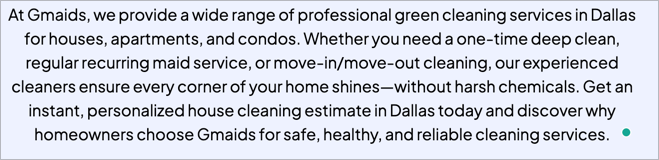
Real example:
At Gmaids, we provide a wide range of professional green cleaning services in Dallas for houses, apartments, and condos. Whether you need a one-time deep clean, regular recurring maid service, or move-in/move-out cleaning, our experienced cleaners ensure every corner of your home shines — without harsh chemicals. Get an instant, personalized house cleaning estimate in Dallas today and discover why homeowners choose Gmaids for safe, healthy, and reliable cleaning services.
Notice: it names the city twice, lists every service type, states the differentiator (green, no harsh chemicals), and closes by pointing at the estimator. That’s not an accident — that’s a page written to be understood, by humans and machines both.
Step 4: Write Your “Why Choose Us” Section
This is your trust section. It has three parts: a heading, a description, and an image.
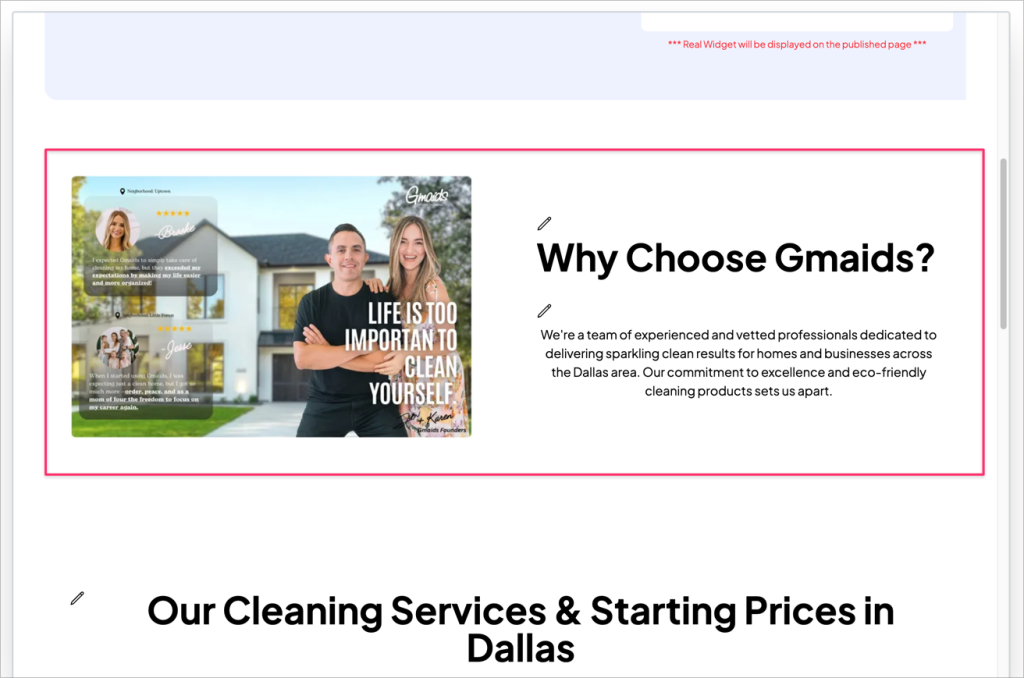
The Heading
Keep it simple and put your brand name in it.
Example: Why Choose Gmaids?
The Description
Two to three sentences. This is where you sound like a real business run by real people. Answer:
- Who are your cleaners? (experienced, vetted, background-checked, insured)
- What’s your standard? (excellence, eco-friendly, satisfaction guaranteed)
- What area do you cover?
Real example:
We’re a team of experienced and vetted professionals dedicated to delivering sparkling clean results for homes and businesses across the Dallas area. Our commitment to excellence and eco-friendly cleaning products sets us apart.
The Image — This One Matters More Than You Think
This is your trust section. It has three parts: a heading, a description, and an image.
The Heading
Keep it simple and put your brand name in it.
Example: Why Choose Gmaids?
The Description
Two to three sentences. This is where you sound like a real business run by real people. Answer:
- Who are your cleaners? (experienced, vetted, background-checked, insured)
- What’s your standard? (excellence, eco-friendly, satisfaction guaranteed)
- What area do you cover?
Real example:
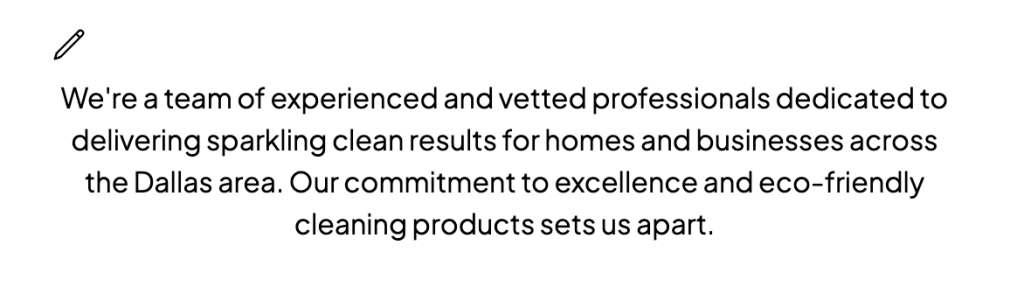
We’re a team of experienced and vetted professionals dedicated to delivering sparkling clean results for homes and businesses across the Dallas area. Our commitment to excellence and eco-friendly cleaning products sets us apart.
The Image — This One Matters More Than You Think
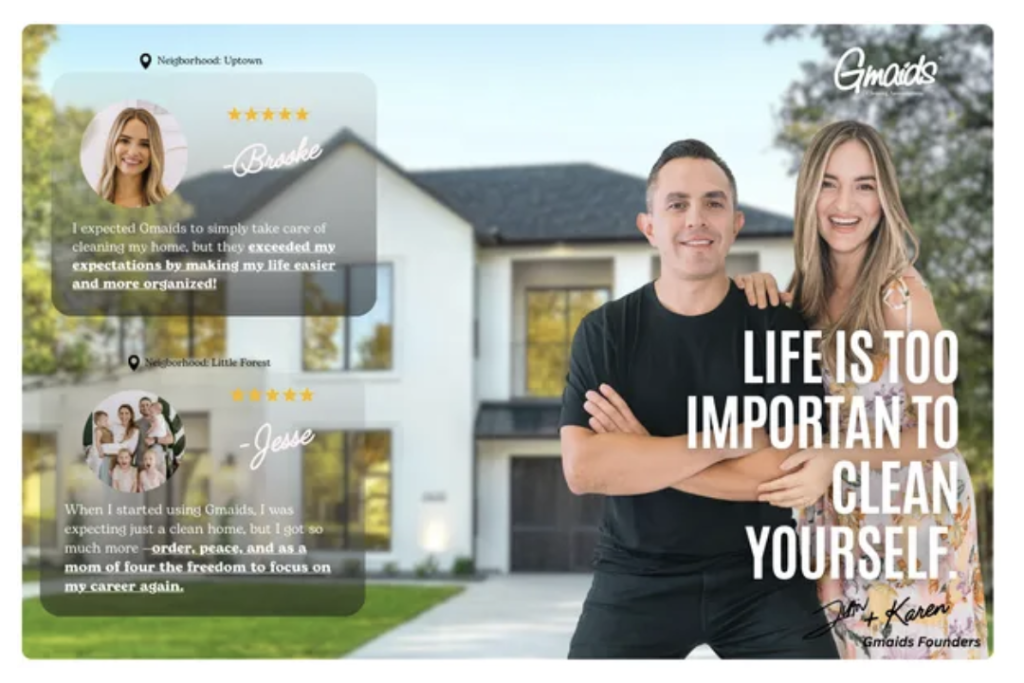
Upload a photo of actual humans from your company. The owner. The team. You and your co-founder standing in front of a house.
Homeowners are letting a stranger into their home while they’re at work. A face does more to close that gap than any paragraph you could write. This is the highest-trust element on the entire page — don’t waste it on a stock photo of a mop.
💡 Bonus move: If you have written reviews, overlay one or two directly on the image before you upload. A real customer quote next to a real founder photo is about as persuasive as a landing page gets.
Step 5: Set Up Your Services & Pricing Section
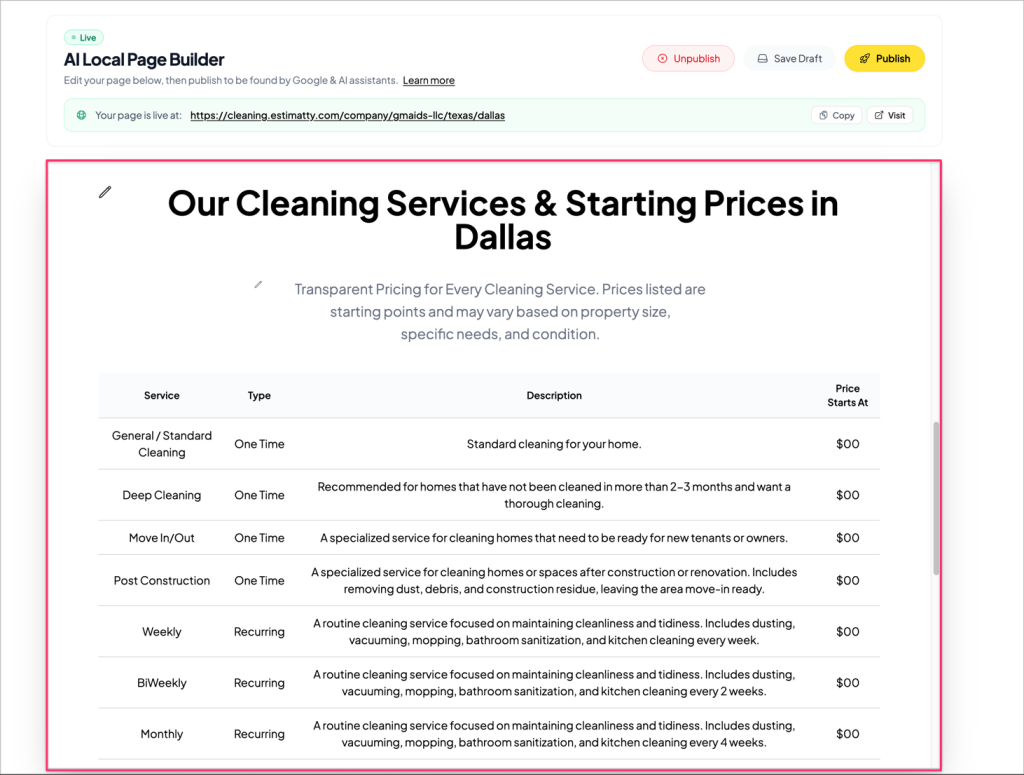
Give this section a heading and a short intro line:
Example heading: Our Cleaning Services & Starting Prices in Dallas
Then stop. You’re done with this section.
Estimatty builds the entire pricing table for you automatically, pulling directly from your Services and Price Book. When you publish, every service you offer appears with its type (One Time or Recurring), a description, and your real starting price.
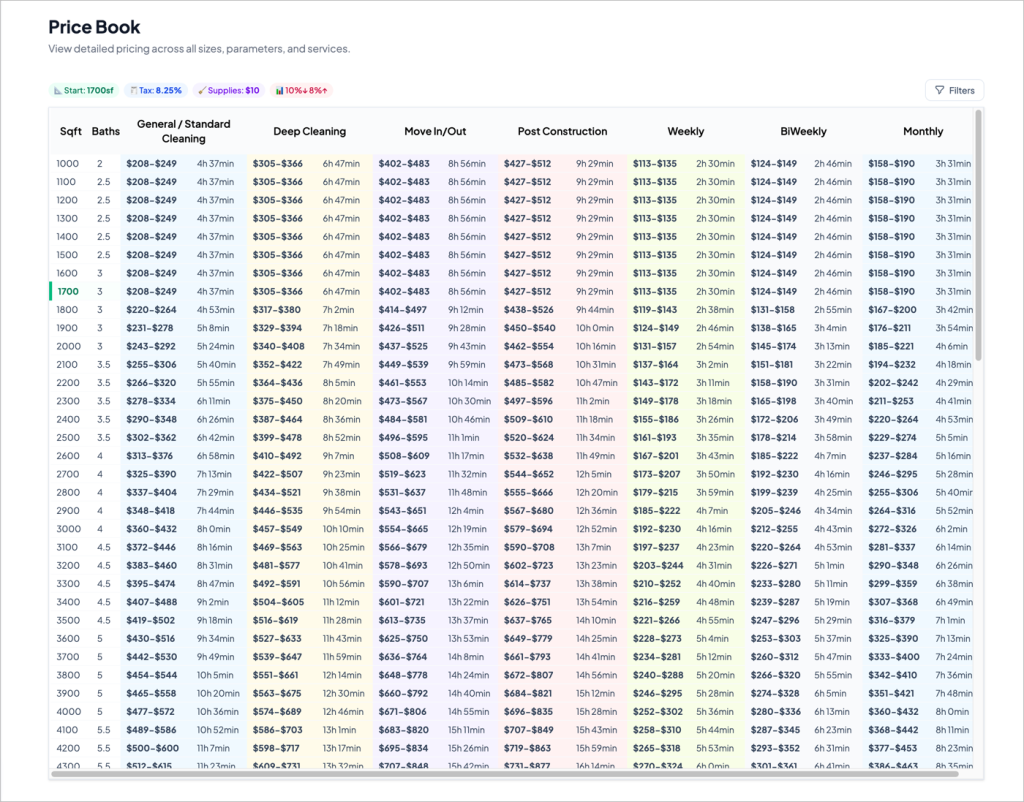
In the builder preview, prices will display as $00 with a note reading “Actual Prices will be shown on the published page.” That’s expected. Your real prices go live the moment you publish.
💡 This is a bigger deal than it looks. Publishing real starting prices on a page that AI assistants can read means that when someone asks ChatGPT “how much is a deep clean in Dallas,” your numbers are in the answer. Most of your competitors are hiding behind “contact us for a quote.” They can’t be recommended. You can.
Step 6: Write Your Final Call to Action
This is the closing section. It has three editable pieces:
The Heading
Lead with credibility or your core promise.
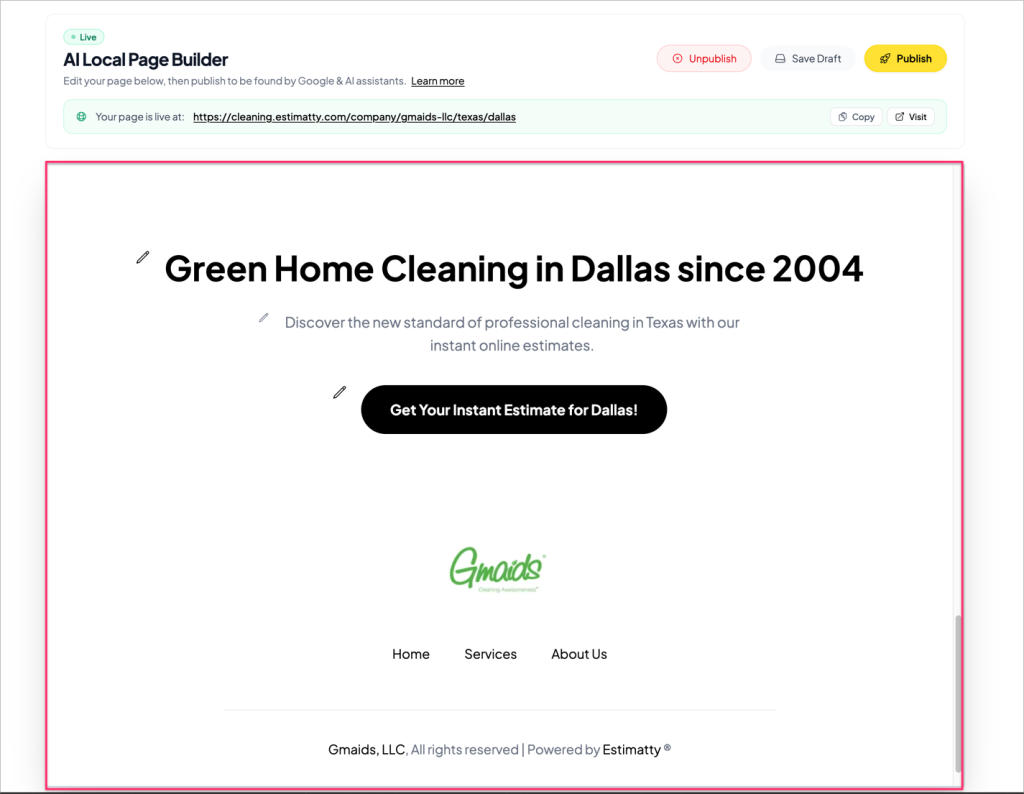
Example: Green Home Cleaning in Dallas since 2004
Years in business is the strongest thing you can put here if you have them. “Since 2004” does more work than any adjective.
The Supporting Line
One sentence that points at the estimate.
Example: Discover the new standard of professional cleaning in Texas with our instant online estimates.
The Button Text
Make it specific to the customer and their city. Vague buttons get vague results.
- ❌ Submit
- ❌ Learn More
- ❌ Get Started
- ✅ Get Your Instant Estimate for Dallas!
💡 Add the city name to your button. It makes the page feel like it was built for the person reading it — because it was.
Step 7: Publish
When everything looks right, click Publish.

Estimatty instantly generates your public URL. It follows this structure:
https://cleaning.estimatty.com/company/[your-company]/[state]/[city]Example: https://cleaning.estimatty.com/company/gmaids-llc/texas/dallas
Your page is now live. The Live badge appears at the top, and you get Copy and Visit buttons next to your URL.
Click Visit and read your page top to bottom as if you were a homeowner seeing it for the first time. If something reads wrong, come back, hit the pencil, fix it, and publish again. You can update this page as many times as you want.
Step 8: Now Actually Use It
Publishing is not the finish line. A page nobody links to is a page nobody finds. Here’s where that URL should go:
Put it everywhere:
- Your Google Business Profile — add it as a link. This is the single highest-impact placement.
- Your Facebook and Instagram bios
- Your email signature
- Your Yelp, Nextdoor, and Thumbtack profiles
- The destination URL for your paid ads — it’s already built to convert
- Any local directory you’re listed in
Why this matters: AI assistants and search engines weigh how often a page is referenced across the web. Every place you drop this link makes it more likely that when someone asks an AI “who should I hire to clean my house in Dallas,” your name comes up.
💡 Start with Google Business Profile. If you only do one of these, do that one.
Common Questions
Can I edit the page after publishing?
Yes, as many times as you want. Click any pencil, make your change, hit Publish again. Updates go live immediately.
What if I want to take it down?
Click Unpublish at the top of the builder. The page goes offline. Your content is saved — you can republish anytime.
Do I need to build the pricing table?
No. Estimatty generates it automatically from your Services and Price Book. If your prices look wrong on the published page, fix them in Pricing → Price Book and republish.
Does this replace my website?
It doesn’t have to. Most owners run it alongside their existing site — as an ad landing page, a Google Business Profile link, and an AI-discoverable presence. If you don’t have a website yet, this works as one on its own.
Can I have more than one city page?
Reach out to support@estimatty.com — we’ll walk you through your options based on your service areas.