
Estimatty’s Booking Settings let you control how customers schedule and pay for cleaning appointments directly through your website. This article walks through the three configuration sections: Availability, Payment, and Booking Options.
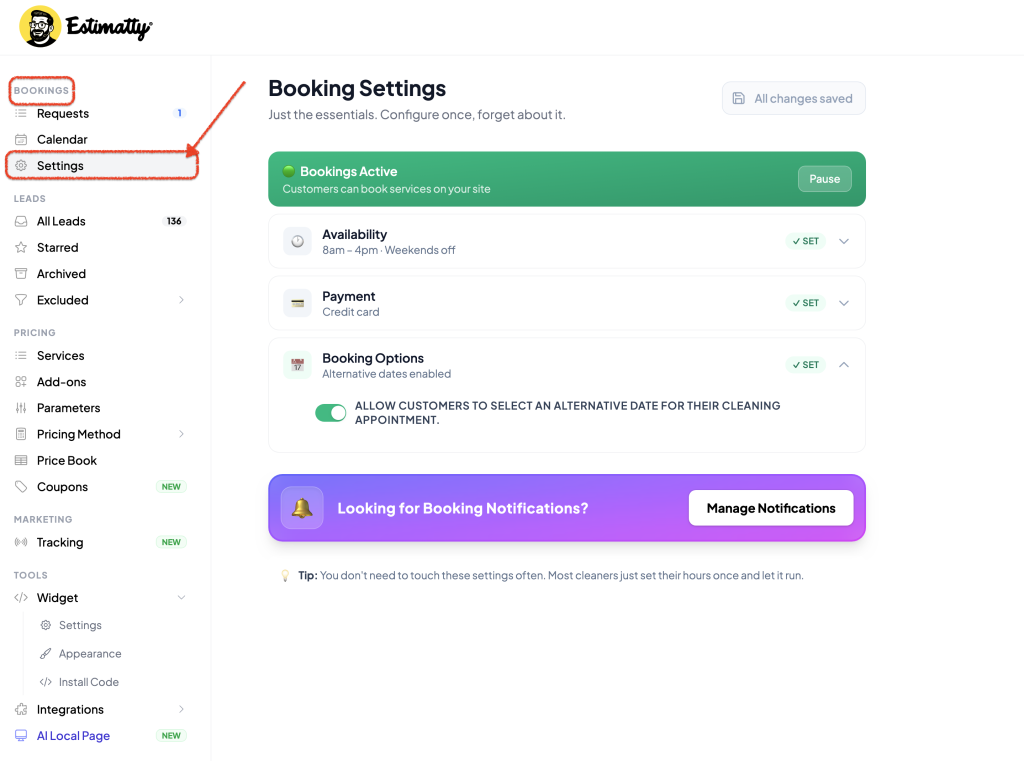
Before you begin, confirm that Bookings Active is toggled on at the top of the Booking Settings page. When active, customers can book services on your site; when paused, the booking widget will not accept new appointments.
1. Availability
The Availability section controls when customers are able to book a cleaning appointment.
Availability slots
Set your working hours by defining a Morning and Afternoon window (e.g., 8:00 AM–12:00 PM and 12:00 PM–4:00 PM). These windows determine the time slots customers can select during booking.
Blocked days
Use the toggles to automatically exclude days from availability:
- Block Saturdays — prevents weekend bookings on Saturday
- Block Sundays — prevents weekend bookings on Sunday
- Block US Holidays — automatically excludes recognized U.S. holidays
If you need to close for a specific date outside your regular schedule (e.g., a one-off closure), use + Block specific dates to add it manually.
2. Payment
The Payment section determines how customers pay for their service and what they see at checkout or on arrival.
Pay on Arrival:
Enable this option if customers can pay in person (cash, check, or card) when the cleaner arrives. The Message shown to customers field lets you customize the instructions displayed at checkout — for example, “Payment at the time of arrival. Please hand check to the employee.” Edit this field to match your preferred payment process.
Credit Card Payments:
To accept online card payments, connect your Stripe account:
- Select Connect My Stripe Account
- Follow the prompts to link your existing Stripe account
Once connected, the panel will display Connected & Active along with your Stripe account ID. If you need to change accounts or stop accepting card payments, select Disconnect & Deactivate Credit Card.
You can enable Pay on Arrival, Credit Card Payments, or both simultaneously, depending on how you want to offer payment flexibility to customers.
Note: If you don’t have an Stripe account, you will be able to create one the same step.
3. Booking Options
The Booking Options section provides additional flexibility in how customers schedule their appointment.
Allow customers to select an alternative date for their cleaning appointment
When this toggle is enabled, customers can propose a different date than the one initially offered, rather than being restricted to the first available slot. This is useful for accommodating customer scheduling conflicts without requiring manual follow-up.
Confirming Your Changes
Estimatty saves changes automatically.
Look for the All changes saved indicator in the top-right corner of the Booking Settings page to confirm your configuration has been applied.
Each section (Availability, Payment, Booking Options) will display a green ✓ SET badge once fully configured.
Need help?
Book a call with our team → or use the Live chat feature on the bottom right.